Static screenshots stop the scroll for half a second. A moving one — gliding across a webpage, pushing into a product, panning down an infographic — holds attention long enough to land the message. The good news: you don’t need After Effects or a subscription. You can do it free, right in your browser, with ReelZoom.
Here’s the whole workflow, start to finish.
1. Grab your image
Anything works: a screenshot of a landing page, a product photo, a poster, a menu, a tweet. Tall images (like a full webpage) are perfect — there’s lots of room for the camera to travel.
2. Drop it in
Open the ReelZoom tool and drag your image onto the canvas (or click to browse). Nothing uploads to a server — everything runs locally on your device, and your work auto-saves so it survives a refresh.
3. Let it draft a path — then make it yours
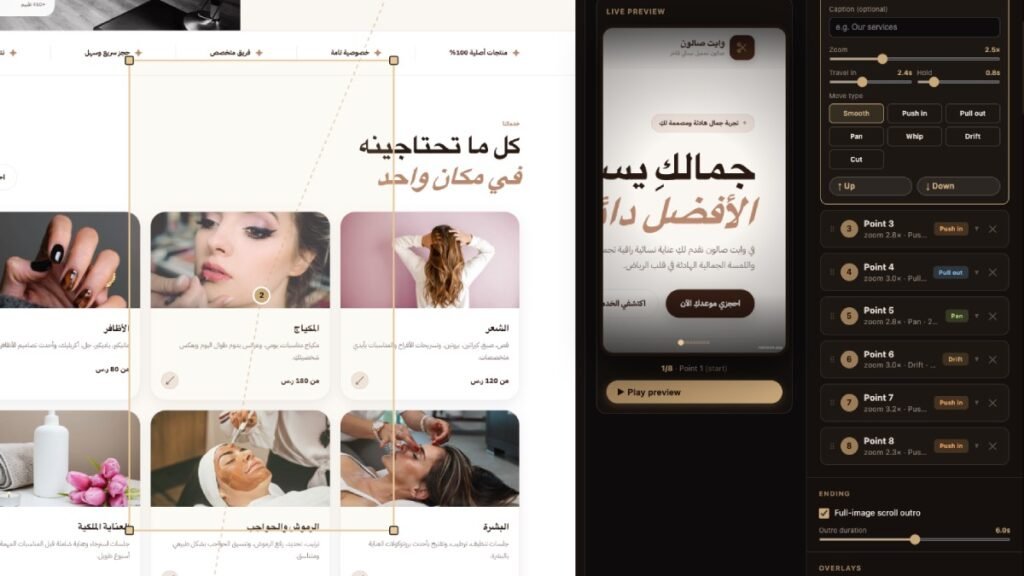
ReelZoom instantly suggests a camera path for your image. From there you fine-tune:
- Add waypoints — click + Add point, then click on the image to drop a stop.
- Move a stop — drag any point.
- Zoom in or out — drag a corner of a point’s frame to resize it right on screen.
- Reorder or delete — use the waypoint panel on the side.
Each waypoint is a “stop” the camera eases through, in order.
4. Pick a feel with presets
Don’t want to tweak every setting? Choose a style preset and the whole path adopts its pacing and motion:
- Cinematic — slow and elegant
- Energetic — fast and punchy
- Showcase — smooth, product-focused
- Scan — steady top-to-bottom reveal
You can still hand-tune any single point afterward — travel time, hold time, and the move type (push, pull, pan, whip, drift, cut).
5. Set your aspect ratio
Match the platform: 9:16 for Reels, TikTok, and Shorts; 1:1 or 4:5 for the feed; 16:9 for landscape. Turn on the safe-zone guides to keep captions and faces clear of where each app puts its buttons.
6. Add captions, music, and polish
- Captions appear per waypoint — great for calling out features as you zoom in.
- Music: pick from the built-in royalty-free tracks or upload your own, set where it starts, and it now fades out cleanly at the end instead of cutting off.
- Overlays: cinematic vignette, progress dots, and your own logo/watermark text.
- Outro: an optional full-image scroll so viewers see the whole thing at the end.
7. Export and post
Hit Record video. ReelZoom renders every frame at full resolution and downloads an MP4 (with a WebM fallback on unsupported browsers), music mixed in. Drop it straight into Instagram, TikTok, or YouTube — no watermark removal, no conversion step.
Tips for reels that actually convert
- Start wide, end on the point. Open on the full image, then push into the one thing you want remembered.
- Fewer, longer holds beat lots of frantic motion. Give viewers a beat to read each stop.
- Match motion to music. Energetic preset + an upbeat track; Cinematic + something ambient.
- Lead with the hook in the first second — that’s all you get before the thumb moves.
That’s it. One screenshot in, one scroll-stopping reel out — free, in your browser. Try ReelZoom now →